Aheto Plugin Start Guide With Dashboard

Accessing the Aheto Dashboard

Once you’ve installed and activated Aheto, you’ll find the plugin’s options under WP Admin > Aheto. The Aheto dashboard offers several sections:

Welcome Screen

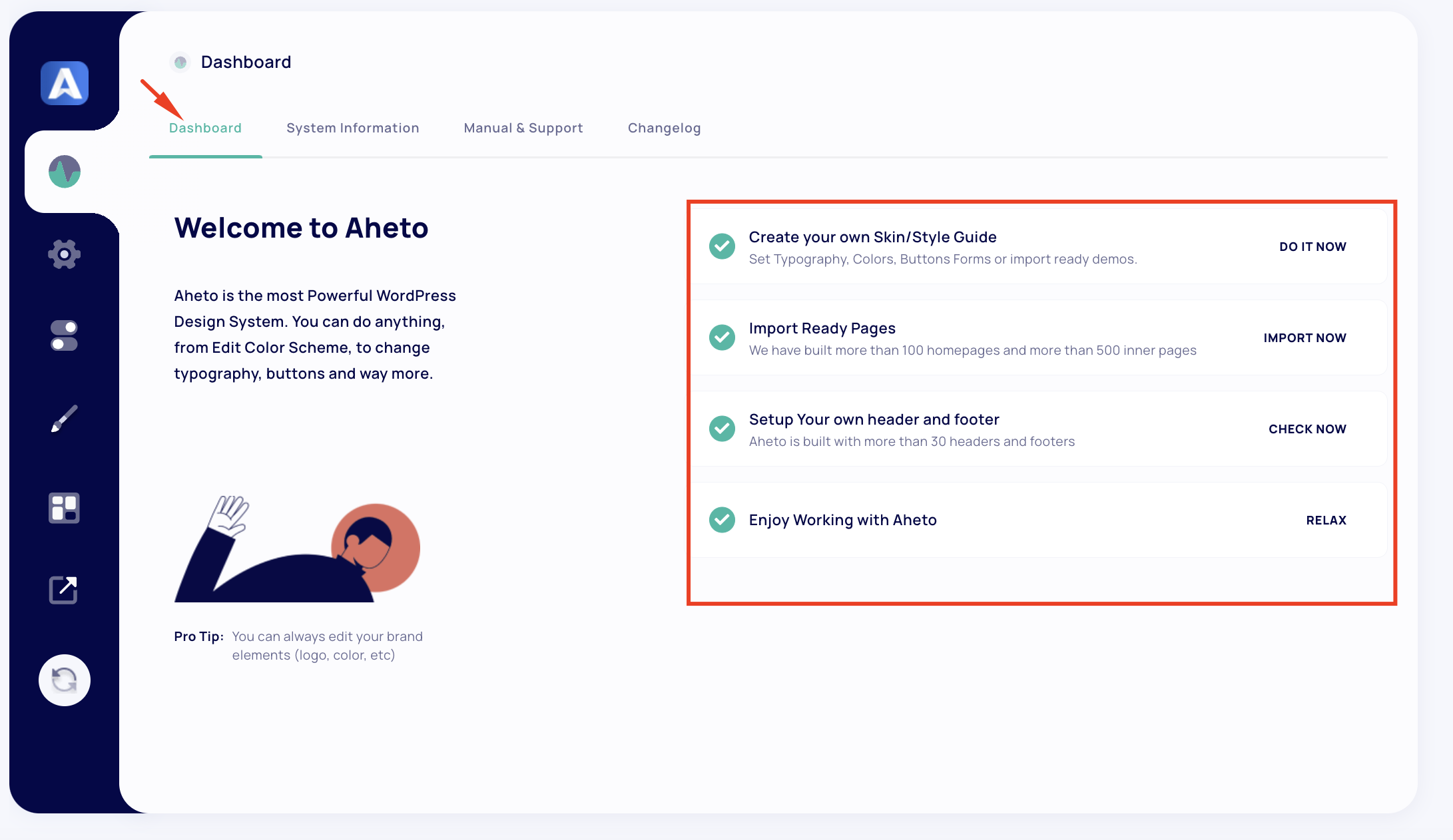
On the Welcome tab, you’re introduced to Aheto’s main features, designed to help you fully personalize your site. Here’s a breakdown of what each section provides:

  • Edit Color Scheme and Typography: Aheto allows you to customize your brand elements, including logos, colors, typography, and button styles. This feature gives you control over the visual identity of your site, letting you create a cohesive brand experience.
  • Create Your Own Skin/Style Guide: Use Aheto’s powerful design system to set up a complete style guide for your website. This includes typography, color palettes, button designs, and form styles. If you prefer a ready-made approach, you can also import fully designed skins.
  • Import Ready Pages: Aheto offers a massive library of pre-designed pages, with over 100 homepage layouts and 500+ inner pages. You can easily import these pages to quickly build a robust site structure.
  • Setup Your Own Header and Footer: With Aheto, you can customize headers and footers, selecting from over 30 different layouts. This feature is ideal for building a professional look and enhancing site navigation.
System Information

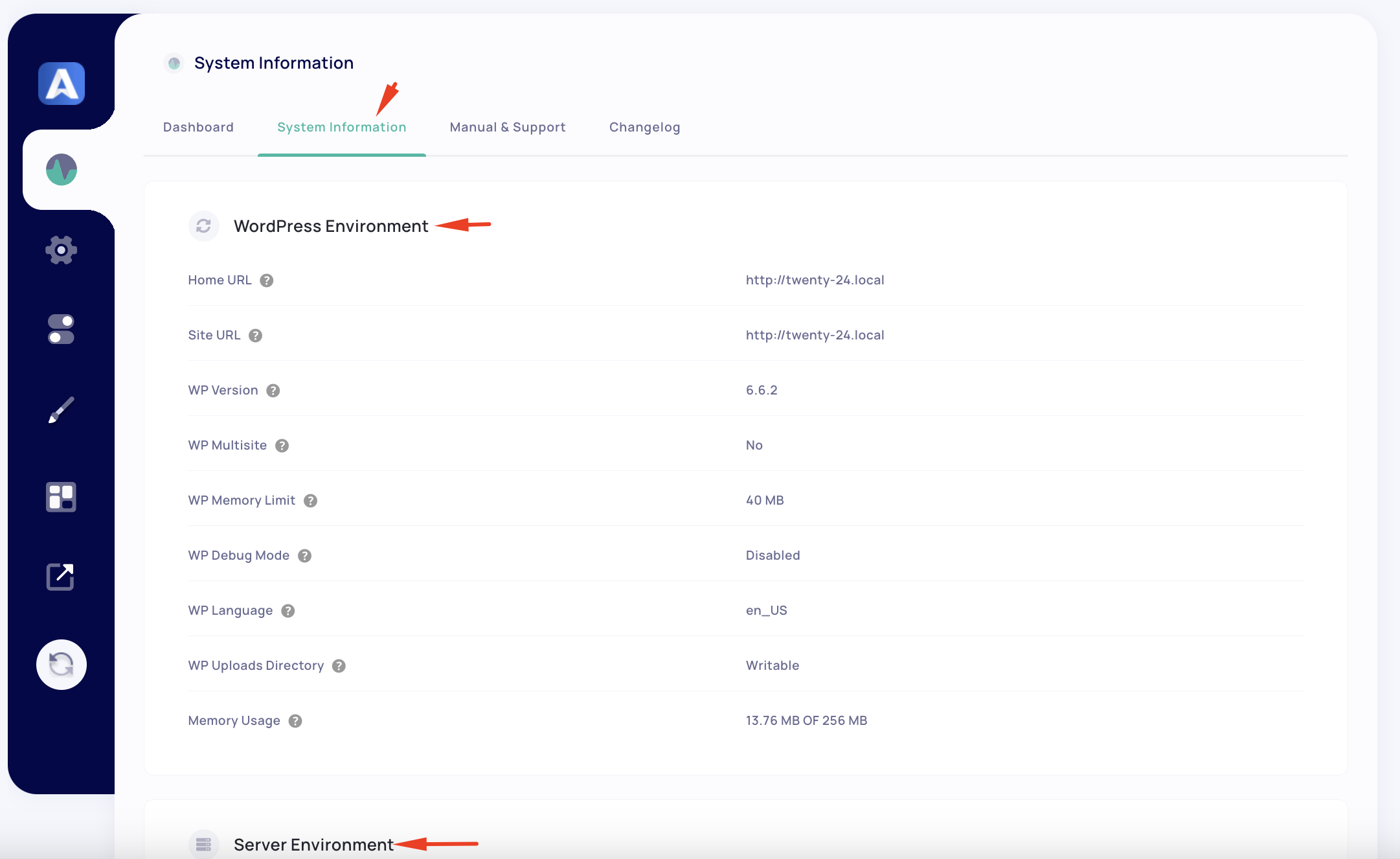
The System Information tab provides a detailed overview of your WordPress environment, server setup, and client device settings. This information can be helpful if you encounter performance issues or need support. The system information is tailored to each user’s environment, so it will vary depending on your hosting configuration and WordPress setup.

Note: If you require assistance, having your system information on hand will help the support team diagnose any issues more quickly.

Example Information Displayed in System Information

  • WordPress Environment: Includes details such as your WordPress version, language, memory limits, and debug mode.
  • Server Environment: Displays server specifications like PHP version, MySQL version, max execution time, and upload size limit.
  • Client Environment: Shows details about the operating system and browser you’re using.
  • Theme and Plugins Information: Lists the theme and plugins currently installed on your site, along with their versions.

This section is a useful reference to ensure your site is configured optimally and meets the minimum requirements for the Aheto plugin to function smoothly.


Manual & Support

The Manual & Support tab is a Coming Soon feature within the Aheto dashboard. Once live, this section will provide direct access to documentation, guides, and support resources to help you get the most out of Aheto.

Until this feature is available, you can consult the theme’s documentation or reach out to support for assistance.


Changelog

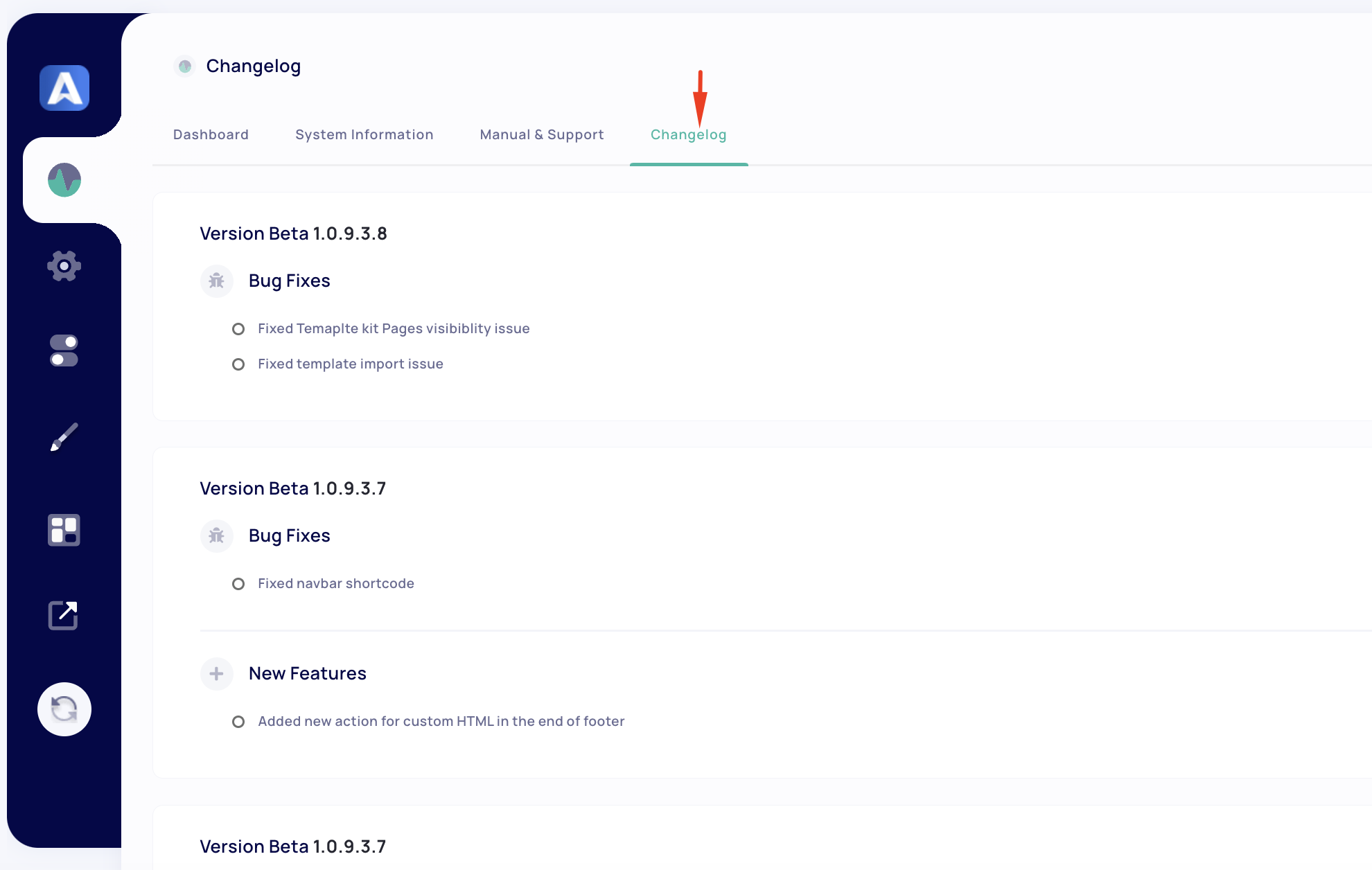
The Changelog tab provides a version history for Aheto, detailing updates, fixes, and new features. Reviewing the changelog after plugin updates is beneficial for understanding improvements and potential compatibility changes.


Conclusion

The Aheto plugin’s features extend far beyond the initial demo import, allowing you to customize nearly every aspect of your site’s appearance. From setting up your brand’s unique style to customizing headers, footers, and page layouts, Aheto equips you with a robust set of tools for creating a professional, customized website. Whether you’re building a site for the first time or refining an existing design, the Aheto plugin provides the flexibility and design options needed to make your site stand out.