

When using the Prague theme, certain strings, such as “Read” in the Projects section, may need translation to match your site’s language. Loco Translate is a powerful plugin that makes translating theme strings simple. This guide will take you through the process step-by-step, with a specific example to illustrate how to translate the “Read” string from the Projects list.
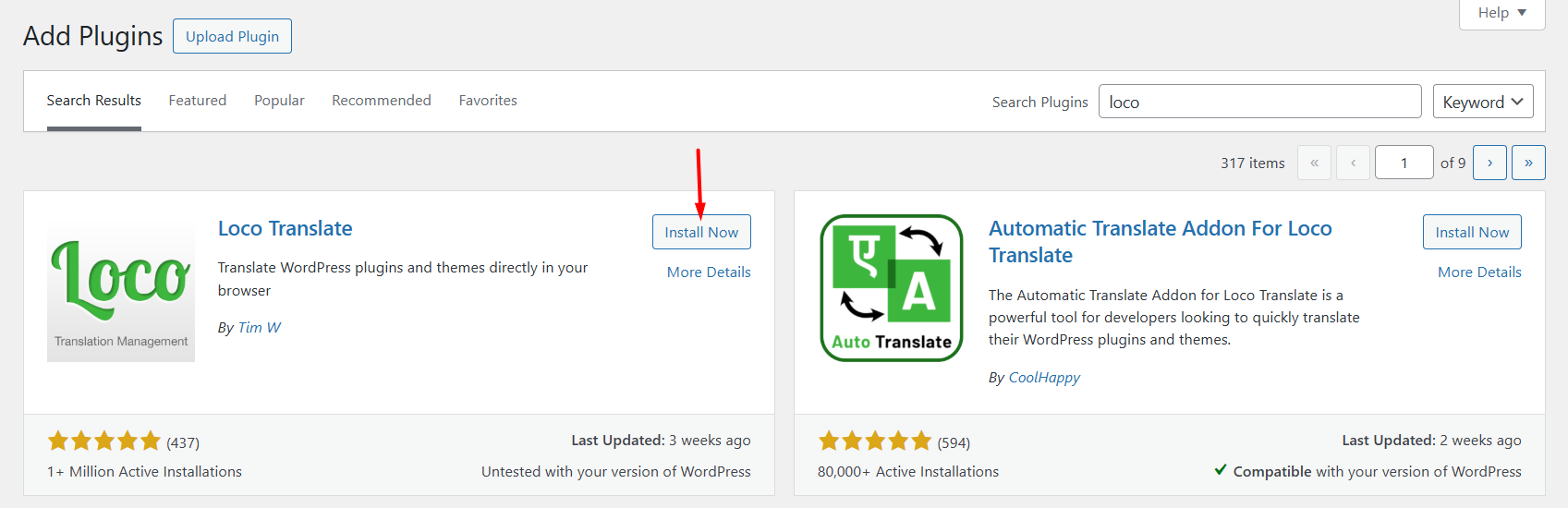
Step 1: Install and Activate Loco Translate
Before you start translating, you need to install the Loco Translate plugin.
-
Log in to your WordPress dashboard.
-
Navigate to Plugins > Add New.
-
In the search bar, type Loco Translate.
-
Click Install Now and then click Activate once the plugin is installed.
Step 2: Locate the Prague Theme for Translation
Once Loco Translate is activated, you’ll need to locate the Prague theme in the plugin interface.
-
Go to Loco Translate > Themes in your WordPress dashboard.
-
Find the Prague theme listed among the installed themes. Click on Prague.
Step 3: Create a New Language (If Not Done Already)
-
In the Prague theme translation page, click on the New Language button.
-
Select your desired language from the drop-down list (e.g., Spanish, French, etc.).
-
Under Choose a location, select Custom (recommended). This ensures your translations won’t be overwritten by theme updates.
-
Click Start Translating to begin the translation process.
Step 4: Example: Translating the “Read” String in the Projects List
Finding the “Read” String
-
In the Loco Translate interface, you’ll see all the available strings in the Prague theme.
-
To locate the “Read” string (often seen in the Projects list as a “Read More” button or similar), use the Search bar at the top of the page.
-
Type “Read” in the search bar and press Enter.
Tip: You can also search for variations of “Read,” such as “Read More,” depending on how it’s implemented in your theme.
Translating the “Read” String
-
Once you find the “Read” string (it will typically show under a domain like Prague Theme > Project Strings or similar), click on it.
-
In the Translation field on the right, enter the translation for “Read” in your chosen language (e.g., in Spanish, you might replace it with “Leer”).
-
After entering the translation, click Save.
Previewing Your Changes
-
After saving your translation, you may want to check your site to make sure the translation has been applied.
-
Clear any site caches if you’re using a caching plugin (e.g., W3 Total Cache, WP Super Cache) to ensure your changes are reflected immediately.
-
Visit the page where the “Read” string appears (e.g., the Projects list) and verify that it’s now showing your translation, such as “Leer” in Spanish.
Step 5: Translating Strings from Plugins (If Applicable)
Sometimes strings, like “Read,” may come from plugins instead of the theme itself (e.g., Prague Core or other Prague-related plugins). If you can’t find the string in the theme’s translation file, follow these steps:
-
Go to Loco Translate > Plugins.
-
Select the Prague Core plugin (or any other related plugins).
-
Repeat Step 3 and Step 4 above to find and translate the string.
Step 6: Clear Cache (Important)
After saving translations, it’s essential to clear your site’s cache:
-
Clear your WordPress cache using your caching plugin (e.g., W3 Total Cache, WP Super Cache).
-
If you’re using a page builder like Elementor, go to Elementor > Tools > Regenerate Files to clear its cache.
This ensures your translations appear on the front end.
Important Notes
-
Always backup your site before making major changes like theme updates or translations.
-
Re-check after theme updates: If your theme receives an update, you may need to update the translation files. Loco Translate will often indicate any missing translations after updates.
-
Custom strings: If you cannot find certain strings, check if they have been customized by your theme or a plugin, and make sure you’re editing the correct translation file.
Troubleshooting
What if I can’t find the string I want to translate?
-
If a specific string doesn’t appear in Loco Translate, ensure that the theme or plugin is fully updated.
-
Try searching by domain (such as Prague or Prague Core) to ensure you’re searching in the correct context.
-
If you’re still unable to locate the string, you may need to contact the support team for more detailed assistance.
By following these steps, you can easily translate most strings in the Prague theme, including frequently used ones like “Read,” “Load More,” and others in the Projects section. Loco Translate makes it easy to manage translations directly from your WordPress dashboard.
Let me know if you need further assistance or help with additional strings!