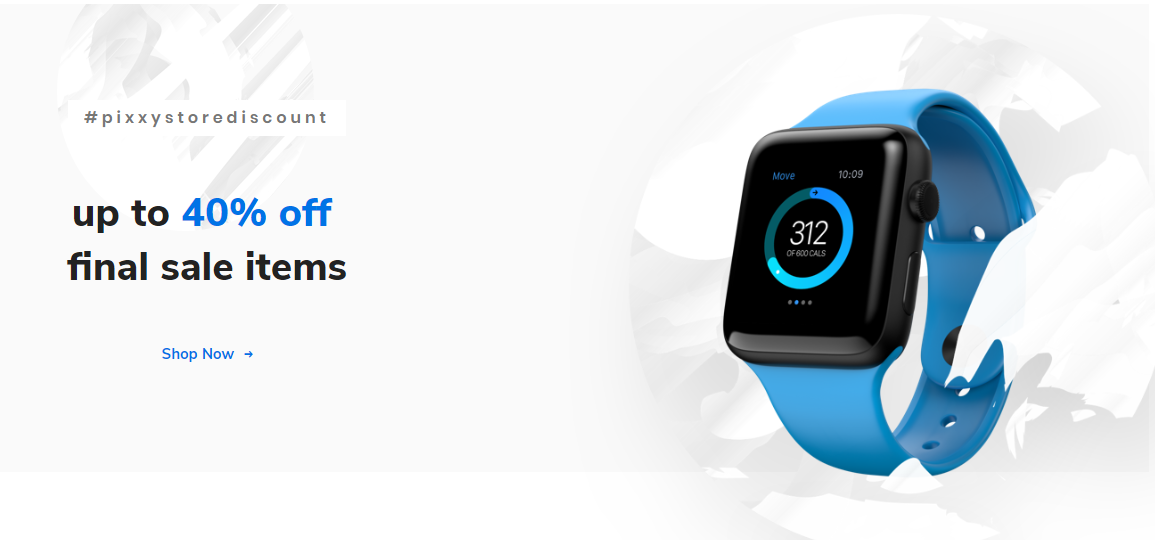

Discount shortcode
Parameters:
- Product image – There you can add the image.
- Mask image – There you can add the mask image. It will be displayed in the top left side in section
- Subtitle – There you can add the subtitle.
- Title – There you can add the title.
- Button – There you can select which link you want.
- Button style – There you can select the style of the button.
- Add icon for button – There you can select the icon for a button.
- Add padding for section? – There you can add the paddings for the section.
- Section color background – There you can add the color of the background in the section.
- Product position for extra large devices – There you can select the position of the product.For devices more 1200px. Specify units in px.
- Top – There you can select the position on the top.
- Right – There you can select the position on the right.
- Bottom – There you can select the position on the bottom.
- Left – There you can select the position on the left.
- Add custom padding-top for section – There you can add the padding.
- Add custom padding-bottom for section – There you can add the padding.
- Add custom margin-top for product – There you can add the padding.
- Add custom margin-bottom for product – There you can add the padding.
- Product position for large devices – There you can select the position of the product. For devices more 992px. Specify units in px.
- Top – There you can select the position on the top.
- Right – There you can select the position on the right.
- Bottom – There you can select the position on the bottom.
- Left – There you can select the position on the left.
- Add custom padding-top for section – There you can add the padding.
- Add custom padding-bottom for section – There you can add the padding.
- Add custom margin-top for product – There you can add the padding.
- Add custom margin-bottom for product – There you can add the padding.
- Product position for medium devices – There you can select the position of the product. For devices more 768px. Specify units in px.
- Top – There you can select the position on the top.
- Right – There you can select the position on the right.
- Bottom – There you can select the position on the bottom.
- Left – There you can select the position on the left.
- Add custom padding-top for section – There you can add the padding.
- Add custom padding-bottom for section – There you can add the padding.
- Add custom margin-top for product – There you can add the padding.
- Add custom margin-bottom for product – There you can add the padding.
- Product position for small devices – There you can select the position of the product.For devices less 768px. Specify units in px.
- Top – There you can select the position on the top.
- Right – There you can select the position on the right.
- Bottom – There you can select the position on the bottom.
- Left – There you can select the position on the left.
- Add custom padding-top for section – There you can add the padding.
- Add custom padding-bottom for section – There you can add the padding.
- Add custom margin-top for product – There you can add the padding.
- Add custom margin-bottom for product – There you can add the padding.